Search Invoices
This is the default screen that displays when the Expense Invoice Tool is launched.
The screen consists of a tool strip, a search criteria section, and a grid with search results. You can also view the invoice and the invoice history from this screen.
By default, the invoices displayed here are new invoices that have been emailed or uploaded after they have been preprocessed.
Note: Invoices will not be displayed until they have been digitally read, coded to an approved Expense Vendor, and converted to an electronic invoice.
On this screen, you can
-
Use the Search Criteria section to narrow your search results.
- Review invoices in the Grid.
- View an invoice or its history using the blue hyperlinks on the page.
- Use the Tool Strip to Void or Unvoid an invoice or to convert an invoice to a voucher.
Navigation Bar

| Button | Action |
|---|---|
| Invoices | This is the screen that's currently displayed, Search Invoices. |
| Vouchers | Launches the Search Vouchers screen. |
| Batches | Launches the Search Batches screen. |
| CEDNet Voucher Payment Status |
Launches the CEDNet Voucher Payment Status - Search Purchase Vouchers screen. From this screen, you can view the Voucher Details and Payment Details of batched and paid invoices. |
Search Invoices Tool Strip

| Button | Action |
|---|---|
| Search | Performs a new search after entering Search Criteria. |
| Clear | Clears any selected Search Criteria so you can begin a new search. |
| Convert to Voucher | Converts selected invoices to vouchers. Select one or more invoices using the checkbox on the far left of each grid row. |
| Void | Voids selected invoices. Select invoices using the checkbox on the far left of each grid row. |
| Unvoid | Unvoids selected invoices. Set the search criteria to display Voided invoices. Select invoices using the checkbox on the far left of each grid row. |
Search Criteria

| Field | Description |
|---|---|
| Vendor | Type in or select a vendor from the dropdown list. |
| Invoice Number | Enter all or part of the invoice number to narrow your search. |
| Invoice Status |
Select or unselect these options to specify which invoices you want to see:
|
| Invoice Date From/To | Enter the date or date range that the invoice was emailed or uploaded. |
Grid
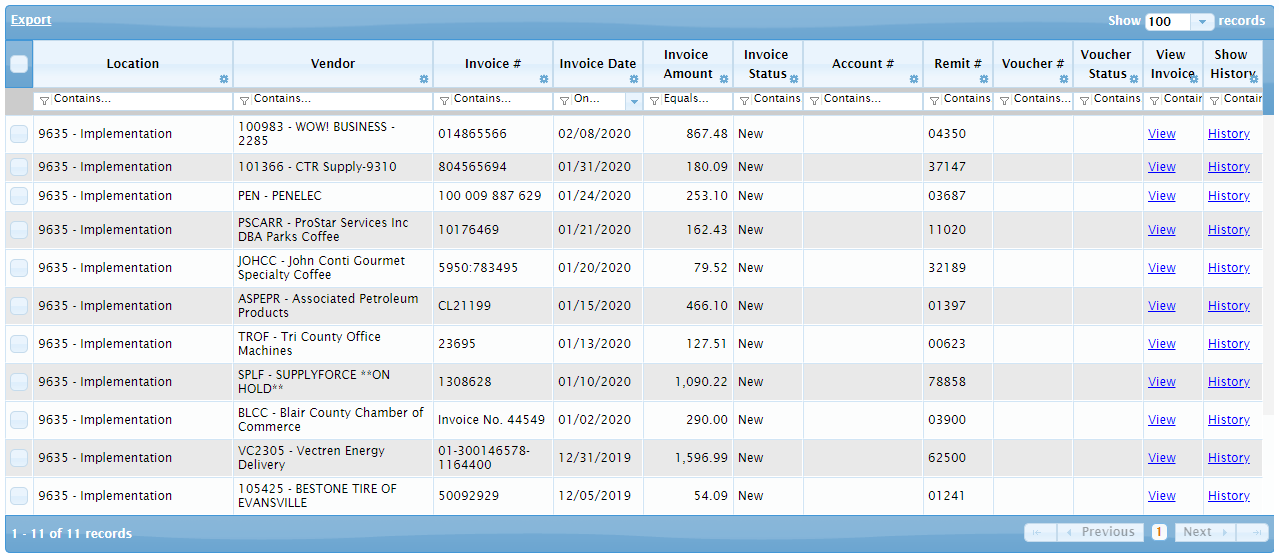
| Column | Description |
|---|---|
| Selection Checkbox | Click in the checkbox to select an invoice and perform actions on it. Actions include Convert to Voucher, Void, and Unvoid. |
| Location | Displays the PC location that received the invoice. |
| Vendor | Displays the Vendor from the emailed or uploaded invoice. |
| Invoice # | Displays the Invoice # from the emailed or uploaded invoice. |
| Invoice Date | Displays the Invoice Date from the emailed or uploaded invoice. |
| Invoice Amount | Displays the Invoice Date from the emailed or uploaded invoice. |
| Invoice Status | Displays the status of the invoice record. Statuses include New, Vouchered, and Void. |
| Account # | Displays the GL Account # the invoice is allocated to. |
| Remit # | Displays the remit number assigned by the system. |
| Voucher # | Displays the voucher number for invoices that have been converted to a voucher. |
| Voucher Status | Displays the voucher status for for invoices that have been converted to a voucher. Statuses include New, Hold, Ready, and Not Ready. |
| View Invoice | Click the link to view the invoice. |
| Show History | Click the link to view the history of the invoice. |