Search Batches

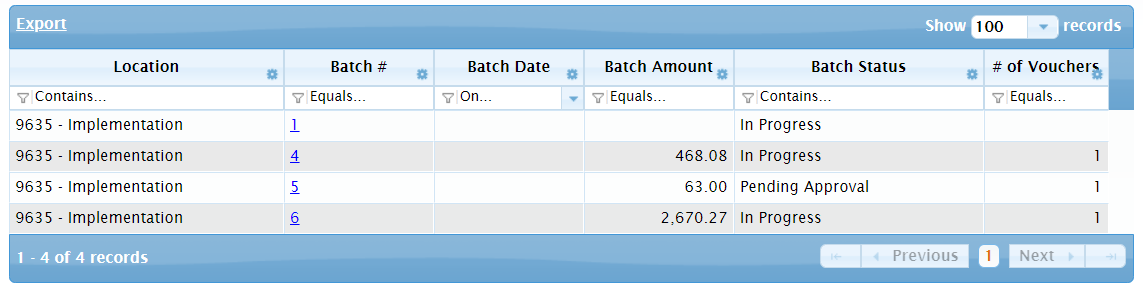
This screen consists of a tool strip, a search criteria section, and a grid with search results.

By default, all batches that have not been approved and transmitted are displayed here.

On this screen, you can

  • Use the Search Criteria section to narrow your search results.

  • Review batches in the Grid.
  • View Batch Details or view the invoices on the voucher using the blue hyperlinks on the page.

Tool Strip

Button Action
Search Performs a new search after entering Search Criteria.
Clear Clears any selected Search Criteria so you can begin a new search.

Search Criteria

Field Description
Batch Number Enter all or part of the batch number to narrow your search.
Batch Status

Select or unselect these options to specify which batches you want to see:

  • In Progress - Open batches that have not been submitted or approved. Vouchers can be added to In Progress batches.

  • Pending Approval - Batches that have been submitted for approval.

    Note: If you are a Manager or Delegate preparing the batch, since you are also the batch approver, you will not need to submit the batch for approval and therefore the batch will not have this status.

  • Approved - Pending Submission - This temporary status may occur if the batch has been approved but there is system lag in the electronic transmission. If a batch stays in this status for more than a couple hours, please reach out to the HelpDesk or Accounting service center for assistance.

  • Approved & Transmitted - Batches that have been approved and transmitted to the Accounting service center to process Vendor payment.

  • Declined - Batches that have been declined by the PC manager or delegate. When a batch is declined, the user who submitted it will be notified via email.

Batch Date Enter the date or date range that the voucher was batched.

Grid

Column Description
Location Displays the profit center processing the batch.
Batch # Displays the batch # assigned by the system when the batch was generated.
Batch Date Displays the date the batch was generated.
Batch Amount Displays the amount of the batch.
Batch Status

Displays the status of the batch. Statuses include

  • In Progress - Open batches that have not been submitted or approved. Vouchers can be added to In Progress batches.

  • Pending Approval - Batches that have been submitted for approval.

    Note: If you are a Manager or Delegate preparing the batch, since you are also the batch approver, you will not need to submit the batch for approval and therefore the batch will not have this status.

  • Approved - Pending Submission - This temporary status may occur if the batch has been approved but there is system lag in the electronic transmission. If a batch stays in this status for more than a couple hours, please reach out to the HelpDesk or Accounting service center for assistance.

  • Approved & Transmitted - Batches that have been approved and transmitted to the Accounting service center to process Vendor payment.

  • Declined - Batches that have been declined by the PC manager or delegate. When a batch is declined, the user who submitted it will be notified via email.

# of Vouchers Displays the number of vouchers in the batch.