Voucher Details
Access the Voucher Details screen by clicking the blue hyperlinked Voucher # in the Grid on the Search Vouchers screen.
On this screen, you can
-
Change the Voucher Status.
- View and edit Voucher Details.
- View the voucher history using the blue hyperlink on the page.
- View Invoice Details.
- Allocate Cost.
- Generate a batch using the Tool Strip.
Tool Strip

| Button | Action |
|---|---|
| Search | Performs a new search after entering Search Criteria. |
| Clear | Clears any selected Search Criteria so you can begin a new search. |
| Generate Batch | Adds the voucher you are viewing to a batch. You can create a new batch or add it to an existing batch. |
| Navigation Arrows | Use the First, Previous, Next, and Last to scroll through the voucher details screen for each of the vouchers in the grid. |
Voucher Information

| Field | Description |
|---|---|
| Voucher # | Displays the Voucher # assigned by the system when the invoice was converted to a voucher. |
| Voucher Status |
Displays the Status of the voucher:
|
| Batch/Status | Displays the status of the batch if the voucher has been added to a batch. |
| Change Voucher Status |
The status can be changed to
|
| Last Updated By |
Displays the name of the person who performed the last action on the voucher. |
| Last Updated Date | Displays the date the last action was taken on the voucher. |
| View History | Click the blue hyperlink to see the history of the voucher. |
Voucher Details

| Field | Description |
|---|---|
| PC | Displays the PC the invoice is associated with. |
| Remit to Address | Displays the remit to address associated with the PC. |
| Vendor | Displays the vendor the invoice is for. |
| Remit # | Displays the remit # assigned to the invoice. |
| Internal Notes | Enter any notes specific to the invoice. |
Invoice Details

| Field | Description |
|---|---|
| Invoice # | Displays the invoice #. |
| Invoice Date | Displays the date of the invoice. |
| Invoice Amount | Displays the invoice amount. |
| Terms | Select CED Standard Terms (default) to apply the terms associated with the vendor. To override the discount amount or due date, select "Override." |
| Override Discount Amount | Select Yes to enable a discount override. Enter the dollar amount of the discount that should be applied in place of the standard terms discount. This must be a positive amount or zero (in the case that a discount needs to be charged back or zeroed out.) |
| Override Dating |
Select Yes to change the invoice due date. |
| View Invoice | Click the link to view the uploaded invoice. |
Cost Allocation
View, add and edit cost allocation on this section of the screen. You can also Export this information in an Excel, PDF or CSV file.
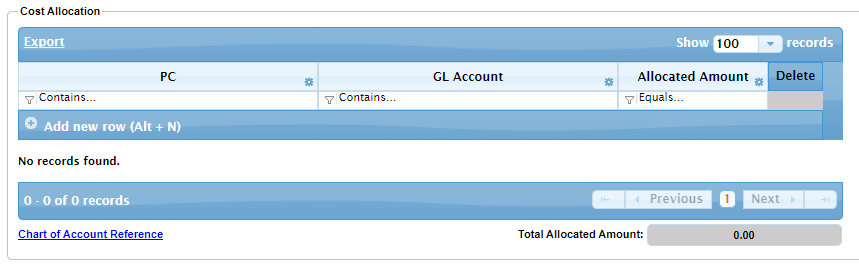
The columns in the top section allow you to search for information about the allocation on the voucher.
| Field | Description |
|---|---|
| PC | Select a PC to filter by. |
| GL Account | Select a General Ledger account to filter by. |
| Allocated Amount | Filter by the allocated amount. |
The next section of the Cost Allocation segment displays the Cost Allocation if it has been entered, and allows you to enter or edit the allocation as well.
To add a new row for cost allocation entry, Click the + sign beside Add New Row, or press Alt + N.
| Field | Description |
|---|---|
| PC | Select the PC cost should be allocated for. |
| GL Account | Select a General Ledger account to allocate cost to. |
| Allocated Amount | Enter or edit the amount of the allocation. |
| Chart of Account Reference | Click the link to view a PDF listing of all allocation accounts. |
| Total Allocated Amount | Displays the total amount allocated, which must equal the invoice amount. |
Payment Details
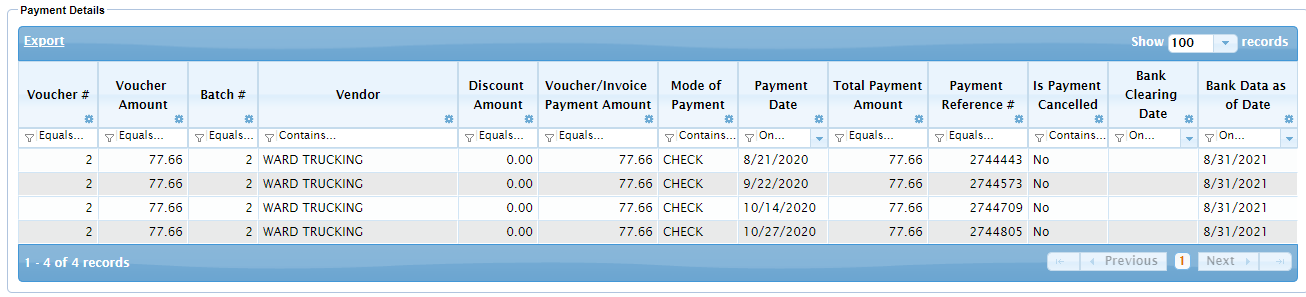
This section will be displayed if the voucher is in Paid status.
| Column | Description |
|---|---|
| Voucher # | Displays the system-assigned voucher number. |
| Voucher Amount | Displays the amount of the selected voucher. |
| Batch # | Displays the batch number that includes the selected voucher. |
| Vendor | Displays the vendor who billed the invoice on the voucher. |
| Discount Amount | Displays any discount amount applied to the voucher. |
| Voucher/Invoice Payment Amount | Displays the amount paid. |
| Mode of Payment | Displays the method of payment. |
| Payment Date | Displays the date of the payment. |
| Total Payment Amount | Displays the total of all payments on the selected voucher. |
| Payment Reference | Displays any applicable reference number for the payment such as a check number. Select the link to view all vouchers associated with that payment reference number. |
| Is Payment Cancelled | Displays 'Yes' or 'No' to indicate whether or not the payment has been canceled. |
| Bank Clearing Date | Displays the date the payment settled, or cleared the bank. If the payment was voided or cancelled this column will be blank. This information will be shown regardless of the expense vendor payment status. |
| Bank Data as of Date | Displays the last date a bank statement was generated. The Bank Data as of Date is periodically updated based on the timing of bank statements. |

