Generate Batch
You can generate a batch from the Search Vouchers screen or the Voucher Details screen.
The dialog that opens walks you through the steps to batch the voucher.
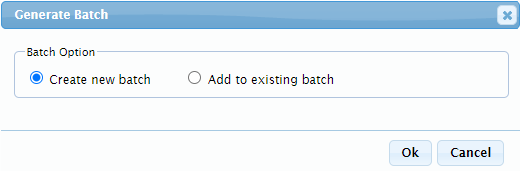
Select whether you'd like to create a new batch or add the voucher to an existing batch and click OK.

If adding a voucher to an existing batch, select the checkbox to the left of the batch # and click OK.
Note: The information symbol  indicates a previous year batch.
Click Cancel to exit the dialog without batching the voucher.

