Batch Details Screen
Use this screen to see detailed information about a batch and the invoices in it. Delegates can also approve and decline batches on this page.
This screen consists of a tool strip, a Batch Details section and a Voucher Details section,
Tool Strip


| Button | Action |
|---|---|
| Search | Click this button to perform a new search after entering Search Criteria. |
| Clear | Clears any selected Search Criteria so you can begin a new search. |
| Submit for Approval | Click this button to submit the batch for approval. |
| Approve, Decline | Assigned delegates will see Approve and Decline instead of Submit for Approval. Click the appropriate button to approve or decline the batch. |
| First, Prev, Next, Last | Use the navigation buttons to view a series of batches from any list of search results without returning to the Search Batches screen. |
Batch Details

| Field | Description |
|---|---|
| PC | Displays the profit center that generated the batch. |
| Batch Number | Displays the batch number. |
| Batch Status |
Displays the batch status. Statuses include
|
| Batch Date | Displays the date the batch was generated. |
| Batch Amount | Displays the total amount of the vouchers in the batch. |
| Batch Year Assignment |
Select Current Year or Previous Year from the dropdown. Selecting Previous Year allows the batch to handle prior year expense vouchers only. This option will only appear for a limited time during the year when previous year batches can be approved. When this field is displayed, it is required. After making a selection from the dropdown, you must click Save before submitting the batch for approval. |
| Last Updated By | Displays the name of the user who last performed an action on the batch. |
| Last Updated Date | Displays the date the last action was performed on the batch. |
| View History | Click the link to view the batch history. |
Voucher Details Grid
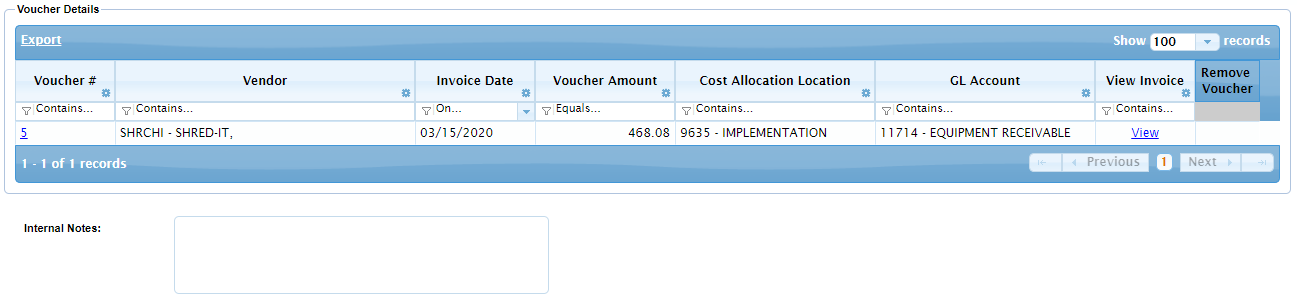
| Column | Description |
|---|---|
| Voucher # | Displays the voucher number generated by the system when the invoice was converted to a voucher. |
| Vendor | Displays the vendor who billed the invoice. |
| Invoice Date | Displays the date of the invoice. |
| Voucher Amount | Displays the total amount of the voucher. Vouchers can contain one or more invoices. |
| Cost Allocation Location | Displays the PC the cost is allocated to. |
| GL Account | Displays the general ledger account the cost is allocated to. |
| View Invoice | Click the blue hyperlink to view the scanned or emailed invoice. |
| Remove Voucher |
Select a voucher and click Remove Voucher to remove it from the batch. Note: Only batches in In Progress or Declined can be removed from a batch. Once removed from the batch, the voucher will return to Ready status. |
Internal Notes
This field allows you to enter notes about the batch.
Approve or Decline the Batch
Managers and manager delegates will see Approve and Decline buttons on the right-hand side of the toolbar.

Decline Batch
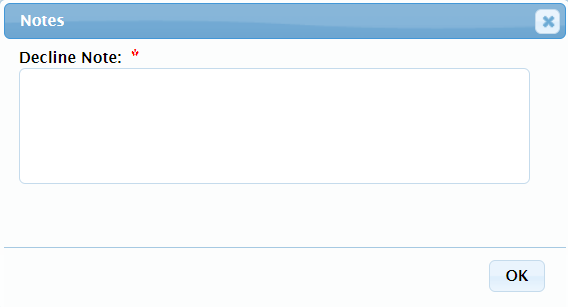
Click Decline to decline a batch. Enter notes about the reason for declining the batch and click OK.
Approve Batch
Click Approve to approve a batch. A "batch approved successfully" system confirmation will appear.

